Billing & Usage
Casola provides a billing page for managing your subscription and payment methods, and a usage page for tracking how your organization uses the platform.
Billing
Section titled “Billing”Open Billing from the sidebar to view your subscription and payment methods. Only organization Owners can manage billing settings — other roles can view but not modify.
Payment methods
Section titled “Payment methods”Your payment methods are listed with the card brand, last four digits, and expiration date. One card is marked as the default.
- Add a card — Click Add Card to enter new card details. Card information is handled securely through Stripe and never touches Casola servers.
- Set default — Click the star icon next to a card to make it the default payment method.
- Remove a card — Click the trash icon to remove a card. You’ll be asked to confirm before it’s deleted.
Canceling
Section titled “Canceling”To cancel your subscription, use the Cancel Subscription button at the bottom of the billing page. This removes all payment methods and downgrades your organization.
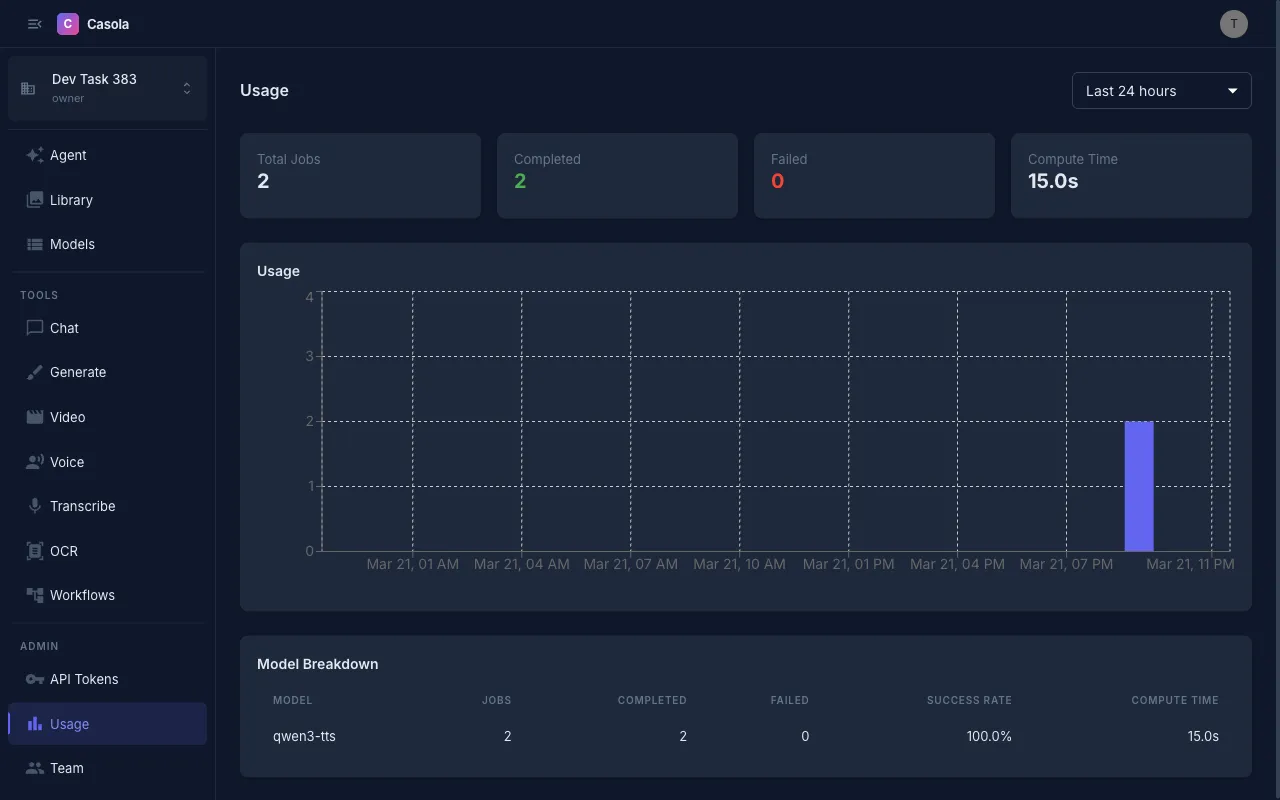
Open Usage from the sidebar to see how your organization is using compute resources.
Time range
Section titled “Time range”Use the dropdown to select a time window:
| Range | Chart granularity |
|---|---|
| Last hour | Per-minute |
| Last 6 hours | Hourly |
| Last 24 hours | Hourly |
| Last 7 days | Daily |
| Last 30 days | Daily |
| Last 90 days | Daily |
Summary cards
Section titled “Summary cards”Four cards at the top give you a quick overview for the selected time range:
- Total Jobs — All jobs submitted
- Completed — Jobs that finished successfully
- Failed — Jobs that encountered an error
- Compute Time — Total GPU time consumed (shown in seconds, minutes, or hours)
Jobs chart
Section titled “Jobs chart”A stacked bar chart shows completed and failed jobs over time. The x-axis adjusts automatically based on the time range — minute-level for the last hour, hourly for 6-24 hours, and daily for longer periods.
Model breakdown
Section titled “Model breakdown”Below the chart, a table breaks down usage by model:
| Column | Description |
|---|---|
| Model | The model or task configuration used |
| Jobs | Total jobs submitted for this model |
| Completed | Successful completions |
| Failed | Failed jobs |
| Success Rate | Percentage of jobs that completed successfully |
| Compute Time | Total GPU time for this model |
The table is sorted by job count, so your most-used models appear first.