Chat
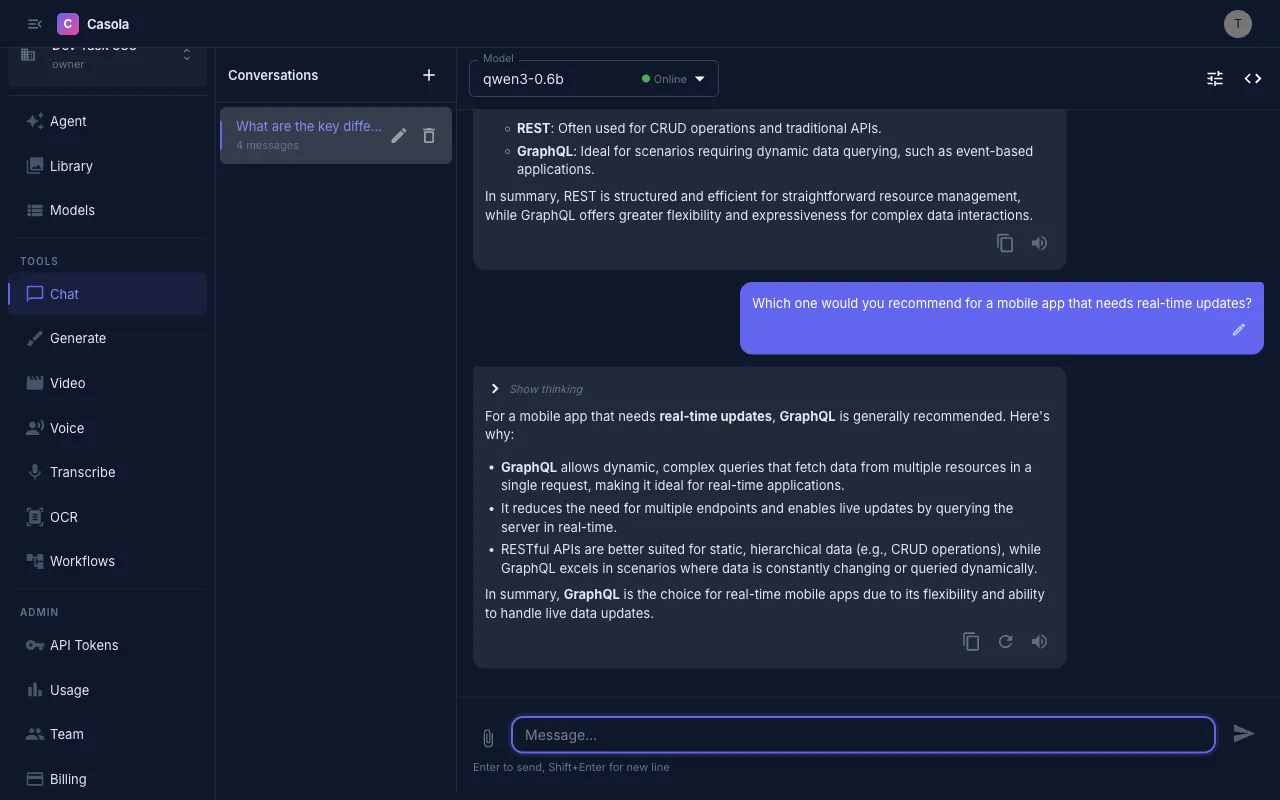
The Chat page provides a full-featured conversational interface for LLM interactions. Navigate to Chat in the sidebar or go to /chat.
On mobile:

Start a conversation
Section titled “Start a conversation”- Select a model from the dropdown in the top bar
- Type a message and press Enter
- The model streams its response in real time
If no model is selected, you’ll be prompted to choose one. Your preferred model is remembered for new conversations.
Select a model
Section titled “Select a model”The model dropdown shows all available chat models with their status:
- Online — responds immediately
- Warming up — spinning up instances; the UI shows a countdown and retries automatically
- Standby — ready to activate
- Offline — unavailable
If a model is warming up, your request queues in the background and completes once the model is ready.
Attach images
Section titled “Attach images”Chat supports vision — attach images for models that support visual input:
- Click the paperclip icon or drag and drop images onto the input
- Thumbnails appear above the text field
- Type your question about the images and send
Supports JPEG, PNG, GIF, and WebP up to 10 MB each, with a maximum of 5 images per message.
Tune model parameters
Section titled “Tune model parameters”Click the settings icon (or press Cmd+Shift+S) to reveal the settings panel:
- System prompt — instructions prepended to every request in this conversation
- Temperature (0–2) — controls randomness; lower is more deterministic
- Max tokens — cap on response length; leave empty for auto
- Top P (0–1) — nucleus sampling threshold
Settings are saved per conversation. Click Reset all to return to defaults.
Use conversation controls
Section titled “Use conversation controls”While the model is responding:
- Cancel — click the stop button or press Escape to abort
After a response completes:
- Copy — copy the response text
- Regenerate — re-send your last message to get a different response (available on the last assistant message)
- Retry — appears on error messages; re-sends the preceding user message
- Edit — click the pencil icon on any user message to rewrite it; all subsequent messages are removed and the conversation continues from your edit (press Enter to save, Escape to cancel)
- Read aloud — plays the response via text-to-speech if a TTS model is available
Export as code
Section titled “Export as code”Click the code icon in the top bar to open the View Code dialog. It generates ready-to-use snippets for your current conversation in three formats:
- curl — shell command with Bearer token auth
- Python — using the OpenAI SDK with
base_url="https://api.casola.ai/openai/v1" - TypeScript — using the OpenAI Node.js SDK
Snippets include your selected model, system prompt, and any non-default parameters. Copy and use them directly in your application.
API usage
Section titled “API usage”You can use the chat completion endpoint directly from your application. The API is OpenAI-compatible, so existing SDKs work out of the box.
Basic request
Section titled “Basic request”curl https://api.casola.ai/openai/v1/chat/completions \ -H "Authorization: Bearer YOUR_API_TOKEN" \ -H "Content-Type: application/json" \ -d '{ "model": "Qwen/Qwen3.5-4B", "messages": [ {"role": "system", "content": "You are a helpful assistant."}, {"role": "user", "content": "What is the capital of France?"} ], "temperature": 0.7, "max_tokens": 256 }'Response:
{ "id": "chatcmpl-abc123", "object": "chat.completion", "created": 1711234567, "model": "Qwen/Qwen3.5-4B", "choices": [ { "index": 0, "message": { "role": "assistant", "content": "The capital of France is Paris." }, "finish_reason": "stop" } ], "usage": { "prompt_tokens": 24, "completion_tokens": 8, "total_tokens": 32 }}Streaming
Section titled “Streaming”Set "stream": true to receive tokens as they’re generated via server-sent events:
curl https://api.casola.ai/openai/v1/chat/completions \ -H "Authorization: Bearer YOUR_API_TOKEN" \ -H "Content-Type: application/json" \ -d '{ "model": "Qwen/Qwen3.5-4B", "messages": [{"role": "user", "content": "Write a haiku about clouds"}], "stream": true }'Each event contains a delta with the next token:
data: {"choices":[{"delta":{"content":"Soft"},"index":0}]}data: {"choices":[{"delta":{"content":" white"},"index":0}]}...data: [DONE]Multi-turn conversation
Section titled “Multi-turn conversation”Include the full conversation history in the messages array:
curl https://api.casola.ai/openai/v1/chat/completions \ -H "Authorization: Bearer YOUR_API_TOKEN" \ -H "Content-Type: application/json" \ -d '{ "model": "Qwen/Qwen3.5-4B", "messages": [ {"role": "system", "content": "You are a helpful assistant."}, {"role": "user", "content": "What is 2+2?"}, {"role": "assistant", "content": "2+2 equals 4."}, {"role": "user", "content": "And what is that times 3?"} ] }'Python (OpenAI SDK)
Section titled “Python (OpenAI SDK)”from openai import OpenAI
client = OpenAI( base_url="https://api.casola.ai/openai/v1", api_key="YOUR_API_TOKEN",)
# Streamingstream = client.chat.completions.create( model="Qwen/Qwen3.5-4B", messages=[{"role": "user", "content": "Hello!"}], stream=True,)for chunk in stream: if chunk.choices[0].delta.content: print(chunk.choices[0].delta.content, end="")TypeScript (OpenAI SDK)
Section titled “TypeScript (OpenAI SDK)”import OpenAI from "openai";
const client = new OpenAI({ baseURL: "https://api.casola.ai/openai/v1", apiKey: "YOUR_API_TOKEN",});
const stream = await client.chat.completions.create({ model: "Qwen/Qwen3.5-4B", messages: [{ role: "user", content: "Hello!" }], stream: true,});for await (const chunk of stream) { process.stdout.write(chunk.choices[0]?.delta?.content || "");}Navigate conversations
Section titled “Navigate conversations”The sidebar lists all your conversations, sorted by most recent. Each entry shows the conversation title and message count.
- New chat — start a fresh conversation (also
Cmd+Shift+N) - Rename — click to edit the title inline
- Delete — remove a conversation permanently
Conversations are persisted server-side and sync to your Library. On mobile, the sidebar collapses into a drawer accessible via the menu button.
Thinking/reasoning display
Section titled “Thinking/reasoning display”Some models include reasoning steps in their responses. These appear as collapsible “Show thinking” blocks — expandable to see the model’s chain of thought, separate from the final answer.