Image Generation
The Image Generation page gives you full control over text-to-image and image editing. Navigate to Image Generation in the sidebar or go to /generate.
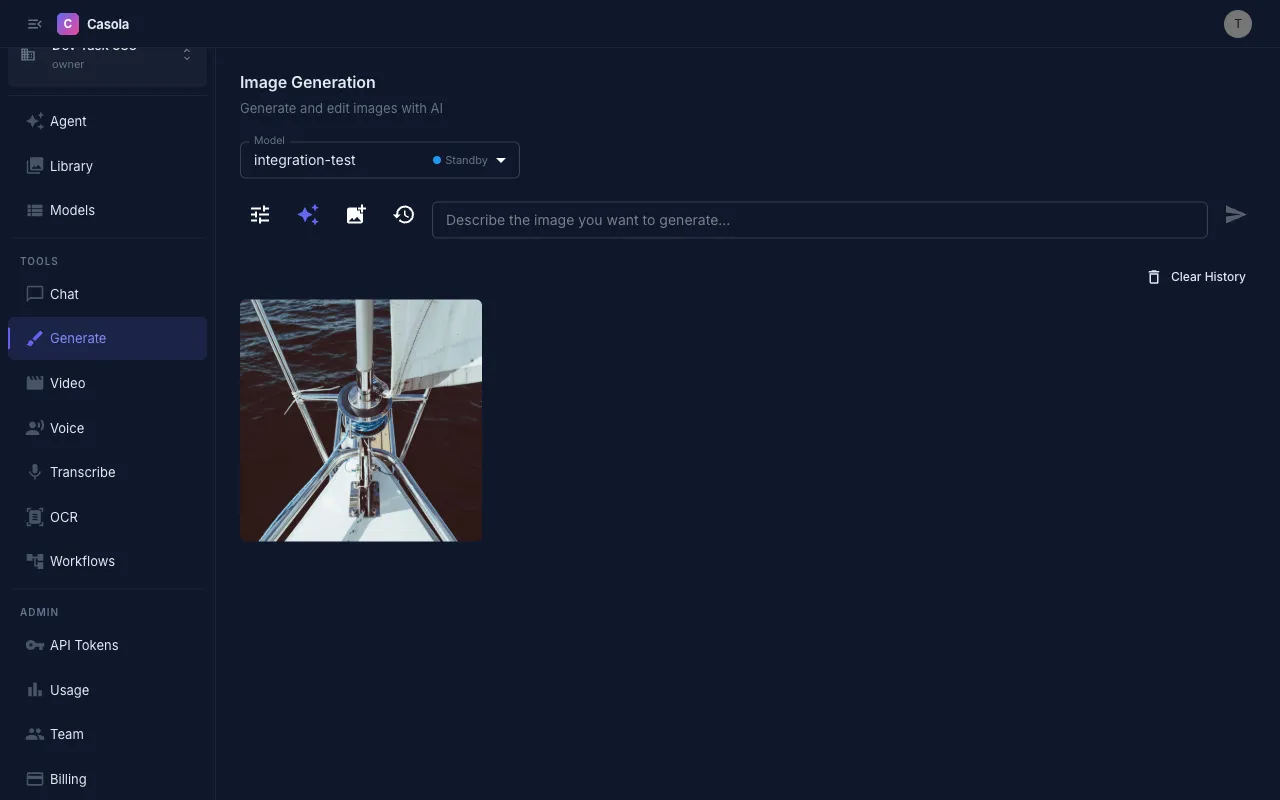
On mobile:
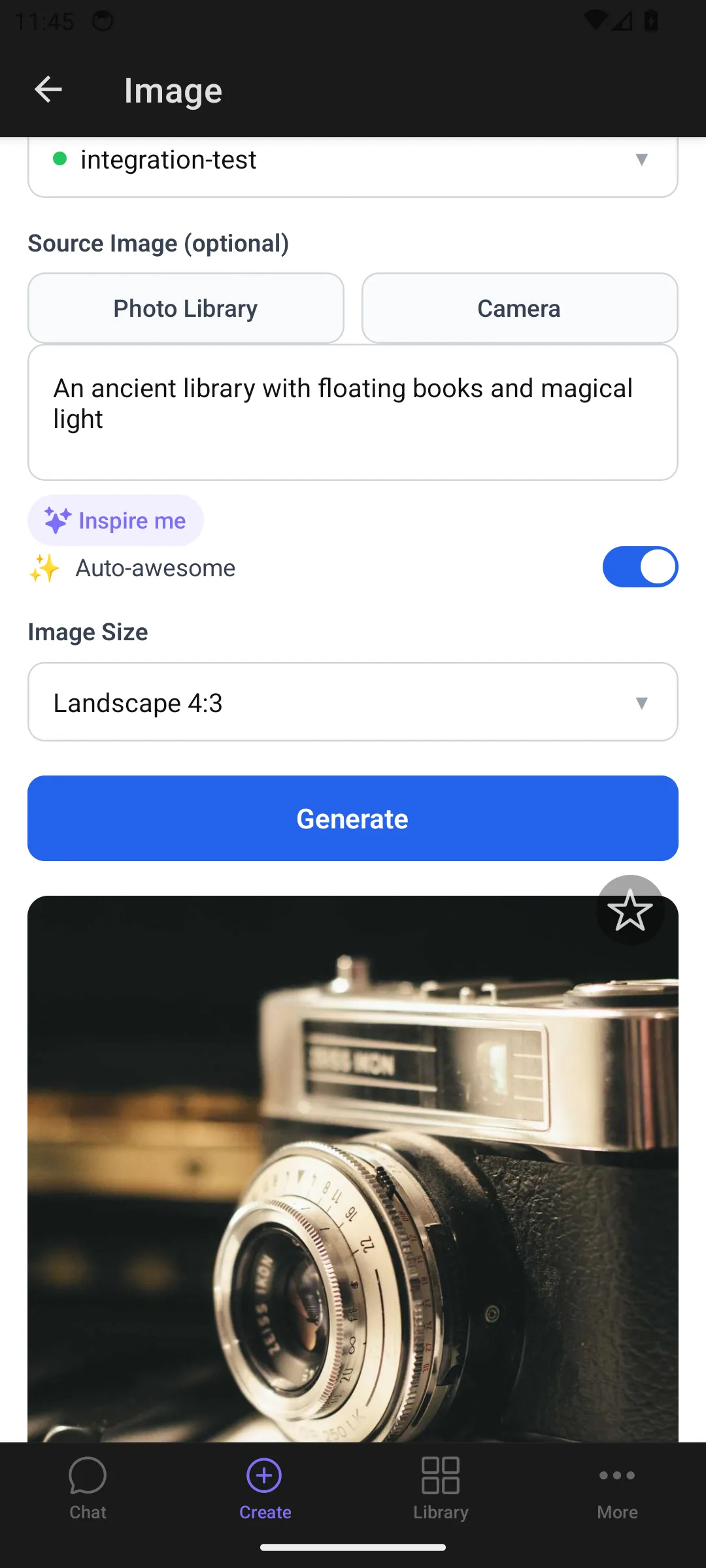
Generate an image
Section titled “Generate an image”- Type a prompt describing the image you want (e.g., “a lighthouse on a cliff at sunset, oil painting style”)
- Press Enter or click the send button
- Watch the progress indicator while the image generates
- Click the result to open it full-size
Your recent prompts are saved — click the history icon in the prompt bar to reuse a previous prompt.
Select a model
Section titled “Select a model”Use the model dropdown to choose a generation model. Available models depend on your organization’s configuration. Models show their current status:
- Online — ready, generates immediately
- Warming up — spinning up, may take a moment
- Offline — currently unavailable (grayed out)
Your last-used model is remembered across sessions.
Use prompt enhancement
Section titled “Use prompt enhancement”When enabled (sparkle icon in the prompt bar), your prompt is automatically expanded for better results before being sent to the model. This adds detail and stylistic cues that improve output quality.
- Toggle on/off with the sparkle icon — highlighted when active
- Only available on models that support it
- Your original prompt is preserved for reference
Turn it off when you need precise control over the exact prompt text.
Adjust advanced settings
Section titled “Adjust advanced settings”Click the settings icon (tune icon) in the prompt bar to expand the settings panel:
| Setting | Default | Range | Description |
|---|---|---|---|
| Image Size | Square HD (1024x1024) | Square, Square HD, Portrait 4:3, Portrait 16:9, Landscape 4:3, Landscape 16:9 | Output dimensions |
| Images | 1 | 1–10 | Number of images per generation |
| Steps | 28 | 1–50 | Inference steps — higher means more detail but slower |
| Guidance | 7.5 | 1–20 | How closely the model follows your prompt |
| Seed | Random | Any number | Set a fixed seed for reproducible results |
| Negative prompt | Empty | Free text | Describe what you want to avoid |
Settings persist across sessions.
Edit an existing image
Section titled “Edit an existing image”To modify an existing image instead of generating from scratch:
- Click the Add photo button, drag and drop an image, or paste from clipboard
- A thumbnail appears above the prompt bar showing your source image
- Type what you want to change (e.g., “make the sky more dramatic”)
- Press Enter to submit
The model must support image editing — if it doesn’t, switch to one that does. Remove the source image with the close button to return to text-to-image mode. Images up to 20 MB in JPEG, PNG, GIF, or WebP are accepted.
API usage
Section titled “API usage”Text-to-image
Section titled “Text-to-image”curl https://api.casola.ai/openai/v1/images/generations \ -H "Authorization: Bearer YOUR_API_TOKEN" \ -H "Content-Type: application/json" \ -d '{ "model": "flux", "prompt": "a lighthouse on a cliff at sunset, oil painting style", "size": "1024x1024", "n": 1 }'Response:
{ "created": 1711234567, "data": [ { "url": "https://cdn.casola.ai/outputs/img_abc123.png" } ]}Image editing
Section titled “Image editing”Provide a source image URL and describe the edit:
curl https://api.casola.ai/openai/v1/images/edits \ -H "Authorization: Bearer YOUR_API_TOKEN" \ -H "Content-Type: application/json" \ -d '{ "model": "black-forest-labs/FLUX.2-klein-4B", "image_url": "https://example.com/photo.jpg", "prompt": "make the sky more dramatic with storm clouds", "size": "1024x1024" }'Advanced parameters
Section titled “Advanced parameters”Use the Fal-compatible endpoint for finer control over generation settings:
curl https://api.casola.ai/fal/fal-ai/flux1-schnell-nunchaku \ -H "Authorization: Bearer YOUR_API_TOKEN" \ -H "Content-Type: application/json" \ -d '{ "prompt": "a lighthouse on a cliff at sunset, oil painting style", "num_images": 2, "num_inference_steps": 28, "guidance_scale": 7.5, "seed": 42, "sync_mode": true }'Response:
{ "request_id": "req_abc123", "status": "completed", "images": [ { "url": "https://cdn.casola.ai/outputs/img_001.png", "width": 1024, "height": 1024, "content_type": "image/png" }, { "url": "https://cdn.casola.ai/outputs/img_002.png", "width": 1024, "height": 1024, "content_type": "image/png" } ], "seed": 42, "timings": {"inference": 4200}}Python (OpenAI SDK)
Section titled “Python (OpenAI SDK)”from openai import OpenAI
client = OpenAI( base_url="https://api.casola.ai/openai/v1", api_key="YOUR_API_TOKEN",)
response = client.images.generate( model="flux", prompt="a lighthouse on a cliff at sunset, oil painting style", size="1024x1024", n=1,)print(response.data[0].url)Find your results
Section titled “Find your results”Generated images appear in the gallery below the prompt bar, newest first. Hover over any image to see its prompt and quick actions:
- Reuse prompt — copies the prompt back to the input
- Delete — removes the image
Click any image to open the lightbox, which shows full metadata (dimensions, seed, inference time) and a download button. All generated images are also available in your Library.