Library
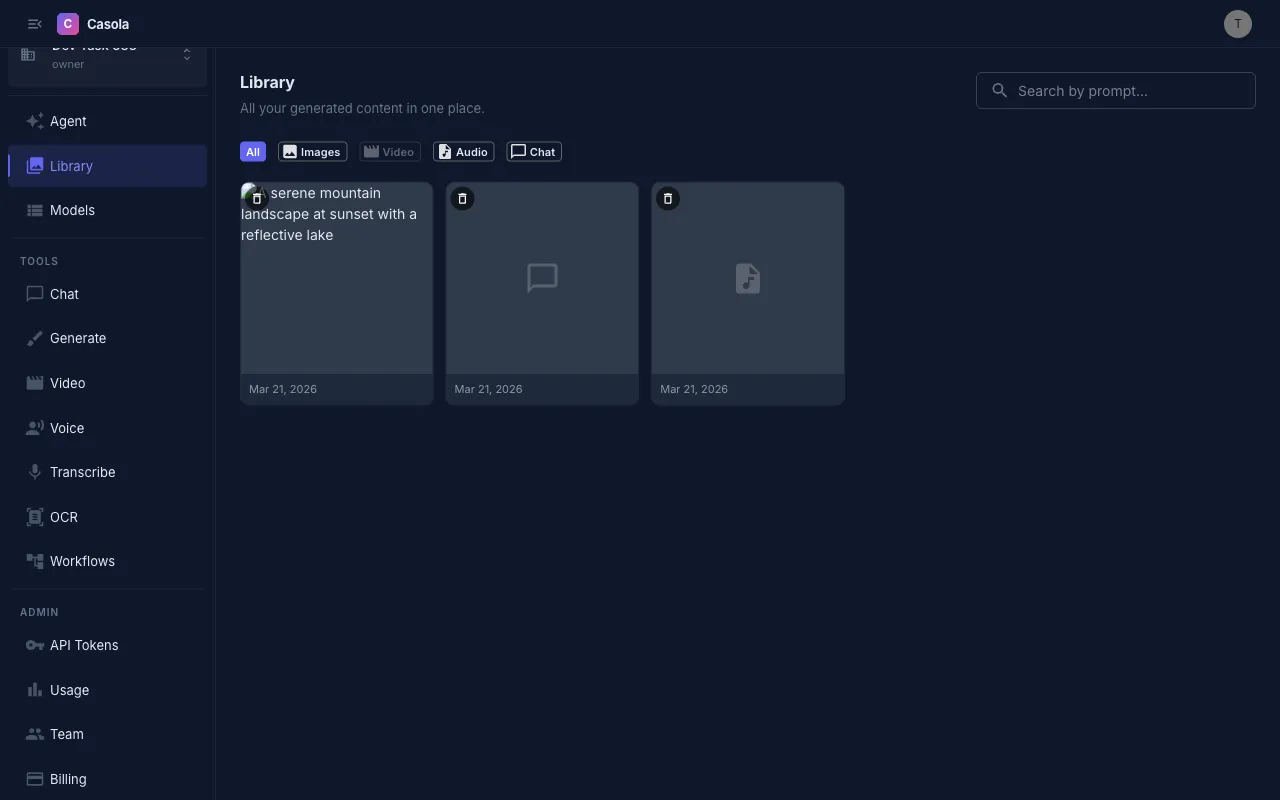
The Library is where all your generated content lives. Every image, video, audio clip, and chat conversation created across Casola is automatically saved here. Navigate to Library in the sidebar or go to /library.
On mobile:
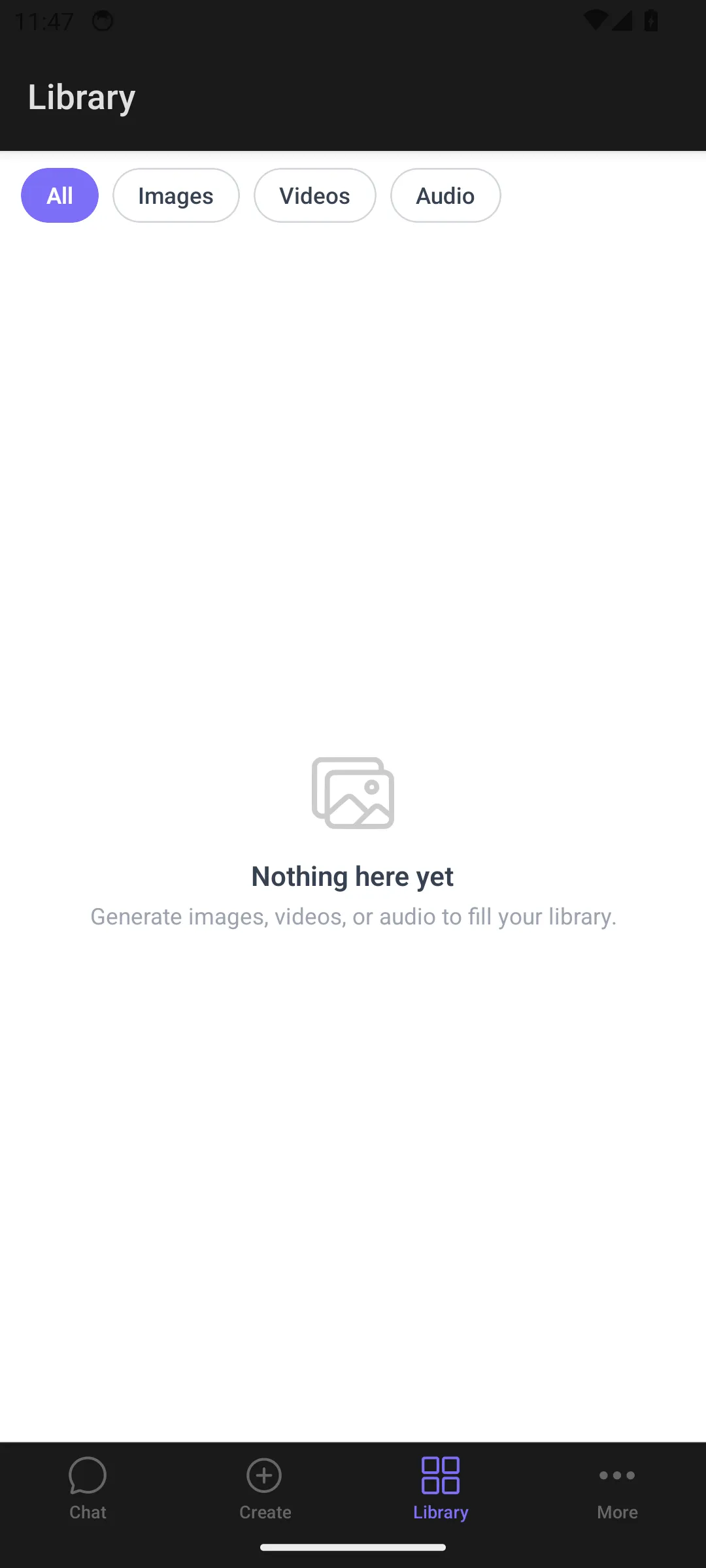
Browse your content
Section titled “Browse your content”The Library displays a responsive grid of your generated assets, newest first. Each card shows a thumbnail and creation date. Hover over a card to see the prompt that generated it.
Pending generations appear at the top with a progress indicator and elapsed timer, then move into the main grid once complete.
Filter by type
Section titled “Filter by type”Use the filter chips at the top to narrow what’s displayed:
| Filter | Shows |
|---|---|
| All | Everything |
| Images | Generated images |
| Video | Generated videos |
| Audio | Text-to-speech output and transcriptions |
| Chat | Chat conversations |
Filters that have no matching content are disabled.
Search
Section titled “Search”Type in the search bar to find content by prompt text, title, or type. Search uses full-text matching — it works across all your saved prompts and conversation messages.
View details
Section titled “View details”Click any card to open the lightbox:
- Images display at full resolution with metadata chips showing dimensions, image size preset, seed, and inference time
- Videos play inline with standard controls
- Audio clips play with a built-in audio player
The lightbox also shows the title (prompt) used to generate the content.
Download and delete
Section titled “Download and delete”In the lightbox view:
- Download — saves the file locally (images as PNG, videos as MP4)
- Delete — permanently removes the item
You can also delete items directly from the grid by hovering and clicking the trash icon.
How content gets here
Section titled “How content gets here”You don’t need to do anything special — the Library collects content automatically from every generation surface:
- Image Generation — every generated or edited image
- Video Generation — all generated videos
- Voice — text-to-speech audio clips
- Transcription — transcribed text from audio files
- Chat — saved conversations with their full message history
- Studio — all media generated during Studio sessions
Each surface syncs results to the Library as soon as generation completes. The Library is your single place to revisit, download, and manage everything you’ve created.
Storage
Section titled “Storage”Library content is stored per organization and persists indefinitely — there is no automatic expiration. All organization members can view content created by any member. Delete items you no longer need to keep your library organized.