Workflows
Workflows let you chain multiple AI tasks into a single pipeline. Each workflow is a directed acyclic graph (DAG) — a set of nodes connected by edges that define the execution order. Outputs from one node can feed into the next, letting you build complex multi-step processes like “enhance a prompt, generate an image from it, then animate the image into a video.”
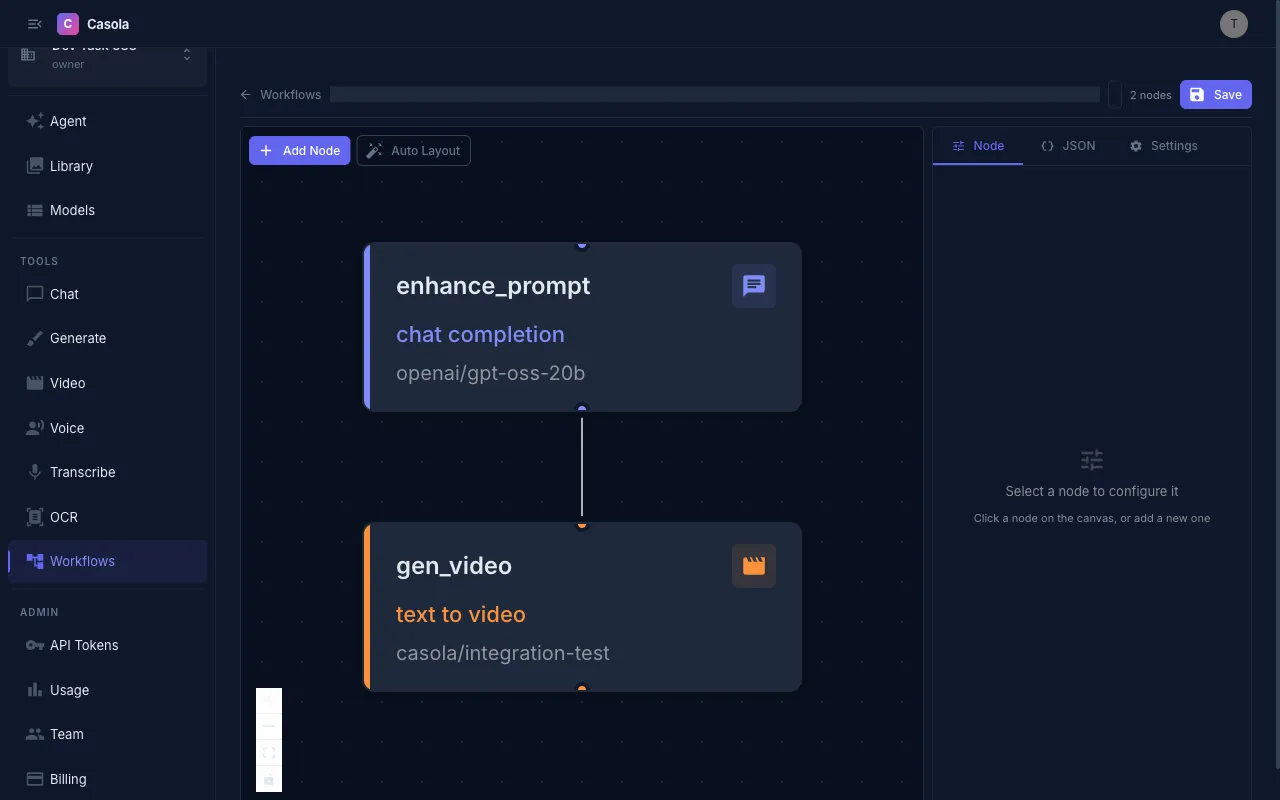
Creating a workflow
Section titled “Creating a workflow”Open Workflows from the sidebar and click New Workflow. You’ll be offered a set of templates or a blank canvas.
Templates
Section titled “Templates”Templates give you a pre-built workflow to start from:
- Prompt to Video — An LLM enhances your prompt, then a video model generates a clip from it. Great for turning rough ideas into polished video prompts.
- Parallel Image Gen — Three image generation nodes run simultaneously with the same input, giving you multiple variations to choose from.
Pick a template to start with a working pipeline, or choose Blank to build from scratch.
The workflow editor
Section titled “The workflow editor”The editor has a visual canvas on the left and a configuration panel on the right with three tabs:
Node tab
Section titled “Node tab”Select a node on the canvas to configure it:
- Task type — What kind of AI task this node performs (e.g. chat completion, image generation, text-to-video). See the Task Types reference for the full list.
- Model — Which model to use for this task. The dropdown shows models compatible with the selected task type.
- Payload fields — Task-specific inputs like prompt text, voice selection, or image URLs. Fields change based on the task type.
JSON tab
Section titled “JSON tab”View and edit the raw DAG definition as JSON. Useful for copying workflows between environments or making bulk edits.
Settings tab
Section titled “Settings tab”Configure workflow-level settings:
- Name — A label for this workflow
- Description — Optional notes about what the workflow does
- Region — Where to run jobs (Global, US, or EU). Defaults to Global.
- Timeout — Maximum execution time in seconds. Jobs that exceed this are cancelled.
- Input parameters — Named parameters that can be passed in when running the workflow (see Variables below)
Adding and connecting nodes
Section titled “Adding and connecting nodes”- Add a node — Click the add button on the canvas to create a new node, then configure its task type and model.
- Connect nodes — Drag from one node to another to create an edge. Edges define execution order — a node only runs after all its upstream nodes complete.
- Parallel execution — Nodes without edges between them run in parallel. In the “Parallel Image Gen” template, all three image nodes start at the same time.
The editor validates your graph automatically. It will warn you if:
- The graph contains a cycle (not allowed — must be acyclic)
- An edge references a node that doesn’t exist
- A node is missing a model selection
Variables
Section titled “Variables”Variables let you pass data between nodes and inject external input into a workflow.
Input parameters
Section titled “Input parameters”Define input parameters in the Settings tab. These are values that are provided each time the workflow runs. Reference them in node payloads with:
${input.prompt}${input.image_url}For example, a “Prompt to Video” workflow might define a prompt input parameter, then use ${input.prompt} in the first node’s payload.
Node output references
Section titled “Node output references”Reference the output of an upstream node using:
${nodes.<node_id>.result.<output_path>}The output path depends on the task type. Common examples:
| Task type | Output reference | What it returns |
|---|---|---|
openai/chat-completion | ${nodes.my_node.result.choices[0].message.content} | Generated text |
fal/text-to-image | ${nodes.my_node.result.images[0].url} | Image URL |
fal/text-to-video | ${nodes.my_node.result.video.url} | Video URL |
openai/audio-speech | ${nodes.my_node.result.audio_url} | Audio URL |
openai/audio-transcription | ${nodes.my_node.result.text} | Transcription text |
The editor shows reference chips below input fields — click a chip to insert the reference into the field you’re editing.
Running a workflow
Section titled “Running a workflow”Click Run in the editor toolbar. If the workflow has input parameters, you’ll be prompted to provide values for each one. The workflow then submits as an async job.
Execution history
Section titled “Execution history”Each workflow run appears in the execution history. Click a run to see:
- Status — Running, completed, failed, cancelled, or timed out
- Node results — The output of each node in the pipeline
- Timing — When each node started and finished
- Errors — If a node failed, the error details
Available task types
Section titled “Available task types”Workflows support all task types on the platform, organized by category:
| Category | Task types |
|---|---|
| Text | Chat completion, embeddings |
| Image | Image generation, text-to-image, image editing |
| Video | Text-to-video, image-to-video, speech-to-video, video interpolation |
| Audio | Text-to-speech, audio transcription |
Each task type has specific input fields and output formats. See the Task Types reference for full details on every task type, including input fields and output schemas.
API usage
Section titled “API usage”Create a workflow
Section titled “Create a workflow”curl -X POST https://api.casola.ai/api/workflows \ -H "Authorization: Bearer YOUR_API_TOKEN" \ -H "Content-Type: application/json" \ -d '{ "name": "Prompt to Video", "description": "Enhance a prompt with an LLM, then generate a video from it", "dag": { "nodes": { "enhance": { "model_id": "Qwen/Qwen3.5-4B", "task": "openai/chat-completion", "inputs": { "messages": [ { "role": "system", "content": "Rewrite the following prompt to be more detailed and cinematic for video generation." }, { "role": "user", "content": "${input.prompt}" } ] }, "outputs": ["choices[0].message.content"] }, "generate_video": { "model_id": "fal-ai/wan/v2.2-5b", "task": "fal/text-to-video", "inputs": { "prompt": "${nodes.enhance.result.choices[0].message.content}", "num_frames": 81, "fps": 16 }, "outputs": ["video.url"] } }, "edges": [ {"from": "enhance", "to": "generate_video"} ] } }'Response (201):
{ "workflow": { "id": "wf_abc123", "organization_id": "org_xyz", "name": "Prompt to Video", "dag": { "..." : "..." }, "created_at": 1711234567, "updated_at": 1711234567 }, "diagnostics": { "type_issues": [], "warnings": [] }}Execute a workflow
Section titled “Execute a workflow”curl -X POST https://api.casola.ai/api/workflows/wf_abc123/execute \ -H "Authorization: Bearer YOUR_API_TOKEN" \ -H "Content-Type: application/json" \ -d '{ "input_params": { "prompt": "a cat playing piano in a jazz bar" } }'Response:
{ "execution": { "id": "exec_def456", "workflow_id": "wf_abc123", "organization_id": "org_xyz", "status": "pending", "input_params": {"prompt": "a cat playing piano in a jazz bar"}, "outputs": null, "error": null, "created_at": 1711234567, "updated_at": 1711234567 }}Poll execution status
Section titled “Poll execution status”curl https://api.casola.ai/api/workflow-executions/exec_def456 \ -H "Authorization: Bearer YOUR_API_TOKEN"When all nodes complete, the response includes outputs from each node. The workflow status transitions through pending → running → completed (or failed).