OCR
Casola extracts text from images and documents using vision-language models. Navigate to /ocr in Studio to get started.
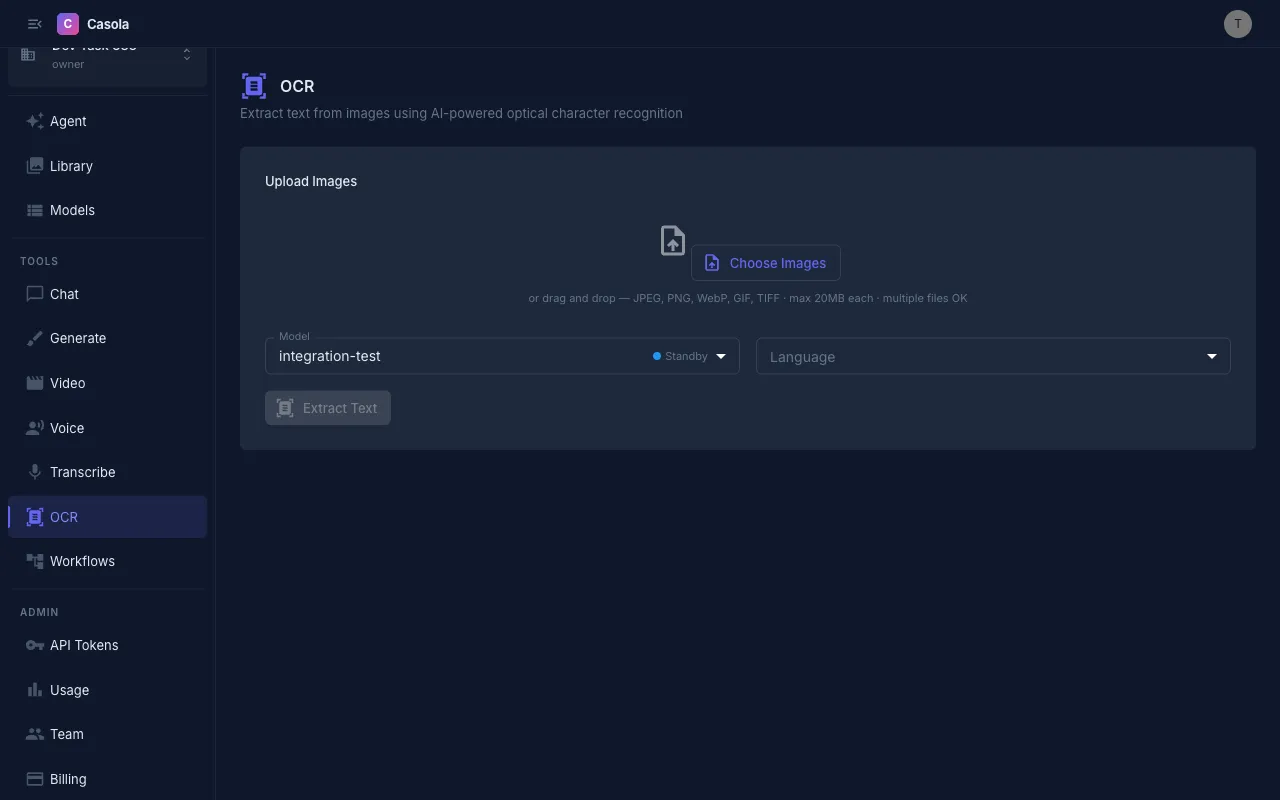
Uploading files
Section titled “Uploading files”Drag and drop images onto the upload area, or click to browse. You can select multiple files at once for batch processing.
Supported formats: JPEG, PNG, WebP, GIF, TIFF (max 20 MB per file).
A thumbnail preview of each queued file appears before you submit, showing the filename and size. Remove individual files from the queue by clicking the X button on each thumbnail.
Batch processing
Section titled “Batch processing”Unlike other Studio features, OCR supports processing multiple files in a single submission. Add all the files you want to extract text from, then click the submit button — it shows the file count (e.g. “Extract text from 5 files”) so you know exactly what will be processed.
Results appear as individual cards, each with the source thumbnail, extracted text, and metadata.
Settings
Section titled “Settings”Model — Casola currently supports DeepSeek OCR v1 and v2 for text extraction. See the Models reference for the latest options and capabilities.
Language — Choose the document language or leave on Auto-detect. Setting the language explicitly can improve accuracy for non-Latin scripts. Supported languages include English, Spanish, French, German, Italian, Portuguese, Russian, Japanese, Korean, and Chinese.
Reading results
Section titled “Reading results”Each completed extraction shows:
- Extracted text — The full recognized text in a monospace view, expandable for long documents
- Confidence score — A percentage indicating how confident the model is in the extraction (when available)
- Word count — Number of words extracted
- Page count — For multi-page results, the number of pages detected
- Model used — Which OCR model processed the file
Exporting results
Section titled “Exporting results”For each result you can:
- Copy — Place the extracted text on your clipboard with one click
- Download — Save the text as a
.txtfile named after the original document
All OCR results are automatically saved to your Library for later access.
API usage
Section titled “API usage”OCR uses the chat completion endpoint with a vision-capable model. Send the image as a URL in the message content:
curl https://api.casola.ai/openai/v1/chat/completions \ -H "Authorization: Bearer YOUR_API_TOKEN" \ -H "Content-Type: application/json" \ -d '{ "model": "deepseek-ocr-v2", "messages": [ { "role": "user", "content": [ {"type": "text", "text": "Extract all text from this image."}, {"type": "image_url", "image_url": {"url": "https://example.com/document.png"}} ] } ] }'Response:
{ "id": "chatcmpl-abc123", "object": "chat.completion", "choices": [ { "index": 0, "message": { "role": "assistant", "content": "Invoice #12345\nDate: 2026-03-15\nTotal: $250.00\n..." }, "finish_reason": "stop" } ]}Using the Fal endpoint
Section titled “Using the Fal endpoint”Alternatively, use the Fal-compatible OCR endpoint:
curl https://api.casola.ai/fal/ocr \ -H "Authorization: Bearer YOUR_API_TOKEN" \ -H "Content-Type: application/json" \ -d '{ "image_url": "https://example.com/document.png", "sync_mode": true }'Response:
{ "request_id": "req_abc123", "status": "completed", "text": "Invoice #12345\nDate: 2026-03-15\nTotal: $250.00\n..."}Python (OpenAI SDK)
Section titled “Python (OpenAI SDK)”from openai import OpenAI
client = OpenAI( base_url="https://api.casola.ai/openai/v1", api_key="YOUR_API_TOKEN",)
response = client.chat.completions.create( model="deepseek-ocr-v2", messages=[ { "role": "user", "content": [ {"type": "text", "text": "Extract all text from this image."}, {"type": "image_url", "image_url": {"url": "https://example.com/document.png"}}, ], } ],)print(response.choices[0].message.content)Processing time
Section titled “Processing time”Most single images complete within 5–15 seconds. Batch submissions process files concurrently, so a batch of 5 images typically finishes in under a minute. Processing time scales with image complexity and text density.
- For best results, use clear, well-lit images where text is legible to the human eye. Blurry or low-contrast images reduce accuracy.
- Crop images to the text region when possible — removing irrelevant background helps the model focus.
- Use batch processing to extract text from a set of related documents (e.g. scanned receipts, whiteboard photos) in one go.
- Check the confidence score — low confidence may indicate the image quality needs improvement or the text is in an unsupported script.
- For multi-page documents, the results include per-page text so you can locate content by page number.