Transcription
Casola transcribes spoken audio into text with timestamps and segment data. Navigate to /transcribe in Studio to get started.
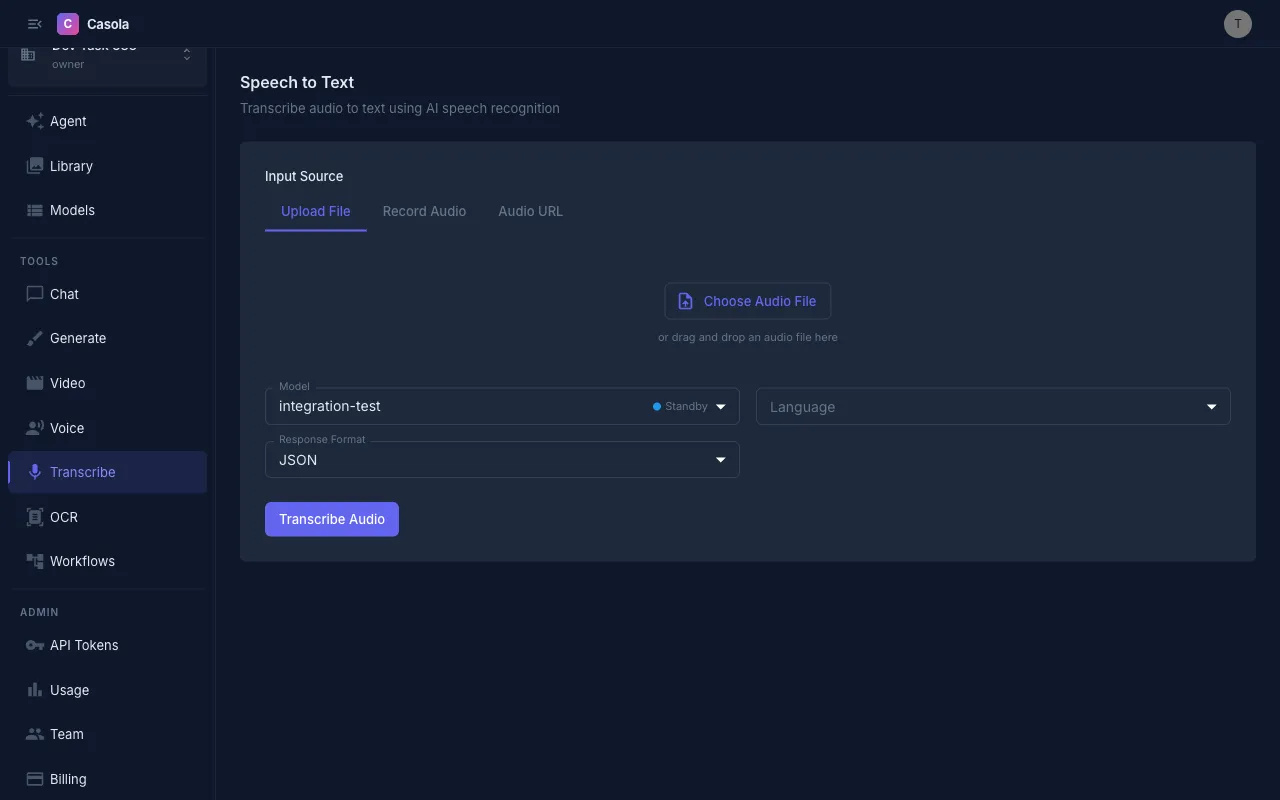
Providing audio
Section titled “Providing audio”Three input methods are available:
Upload a file — Drag and drop an audio file onto the upload area, or click to browse. Supports all standard audio formats (MP3, WAV, M4A, OGG, etc.) up to 25 MB.
Record audio — Click the record button to capture audio directly from your microphone. A playback preview appears when you stop recording so you can verify before submitting.
Audio URL — Paste a direct HTTPS link to an audio file hosted online.
Settings
Section titled “Settings”Model — Casola currently supports Whisper Large v3 for speech-to-text. The model selector shows availability status. See the Models reference for the latest options.
Language — Choose the spoken language or leave on Auto-detect (the default). Specifying the language can improve accuracy for non-English audio. Supported languages include English, Spanish, French, German, Italian, Portuguese, Russian, Japanese, Korean, and Chinese.
Response format — Select how the transcription is structured:
| Format | Description | Best for |
|---|---|---|
| JSON | Full response with segments, timestamps, and metadata | Programmatic use |
| Text | Plain text transcription | Quick reading, copy-paste |
| SRT | SubRip subtitle format with timestamps | Video subtitles |
| VTT | WebVTT subtitle format with timestamps | Web video players |
Reading results
Section titled “Reading results”Completed transcriptions display the full text along with metadata: word count, character count, detected language, and audio duration.
When the model returns segments (available with JSON format), each segment is shown with its start and end timestamps — useful for aligning text to specific moments in the audio.
You can toggle between a formatted text view and a raw JSON view when using the JSON format.
Exporting results
Section titled “Exporting results”- Copy — Click the copy button to place the full transcription on your clipboard
- Download — Save the transcription as a file matching your chosen format (.json, .txt, .srt, or .vtt)
All transcription results are automatically saved to your Library.
API usage
Section titled “API usage”Transcribe from a URL
Section titled “Transcribe from a URL”curl https://api.casola.ai/openai/v1/audio/transcriptions \ -H "Authorization: Bearer YOUR_API_TOKEN" \ -H "Content-Type: application/json" \ -d '{ "model": "whisper-large-v3", "audio_url": "https://example.com/meeting-recording.mp3", "language": "en", "response_format": "verbose_json" }'Response:
{ "task": "transcribe", "language": "en", "duration": 125.4, "text": "Welcome to today's meeting. Let's start with the agenda...", "segments": [ { "start": 0.0, "end": 3.2, "text": "Welcome to today's meeting." }, { "start": 3.5, "end": 6.1, "text": "Let's start with the agenda..." } ]}Upload a file
Section titled “Upload a file”Use multipart/form-data to upload an audio file directly:
curl https://api.casola.ai/openai/v1/audio/transcriptions \ -H "Authorization: Bearer YOUR_API_TOKEN" \ -F model="whisper-large-v3" \ -F file=@recording.mp3 \ -F response_format="json"Response:
{ "text": "Welcome to today's meeting. Let's start with the agenda..."}Get SRT subtitles
Section titled “Get SRT subtitles”curl https://api.casola.ai/openai/v1/audio/transcriptions \ -H "Authorization: Bearer YOUR_API_TOKEN" \ -H "Content-Type: application/json" \ -d '{ "model": "whisper-large-v3", "audio_url": "https://example.com/video-audio.mp3", "response_format": "srt" }'Response (plain text):
100:00:00,000 --> 00:00:03,200Welcome to today's meeting.
200:00:03,500 --> 00:00:06,100Let's start with the agenda...
Python (OpenAI SDK)
Section titled “Python (OpenAI SDK)”from openai import OpenAI
client = OpenAI( base_url="https://api.casola.ai/openai/v1", api_key="YOUR_API_TOKEN",)
# From filewith open("recording.mp3", "rb") as f: transcript = client.audio.transcriptions.create( model="whisper-large-v3", file=f, response_format="verbose_json", )print(transcript.text)for segment in transcript.segments: print(f"[{segment.start:.1f}s] {segment.text}")Processing time
Section titled “Processing time”Transcription speed depends on the length of the audio. Most files under 5 minutes complete within 10–30 seconds. Longer recordings may take proportionally more time.
- For best accuracy, use audio with clear speech and minimal background noise.
- Specify the language explicitly when transcribing non-English audio — auto-detection works well but a language hint improves results.
- Use SRT or VTT format if you need subtitles for a video project.
- The JSON format includes the richest data (segments with timestamps) and is the best choice when you need to process the output programmatically.